I’ve been using ChatGPT for years. Thousands of conversations, tons of built-up context and memory. When I started moving my workflow over to Claude, the biggest frustration wasn’t the interface or the capabilities. It was starting from scratch. Claude didn’t know anything about me, my projects, or how I think.
So I figured out how to transfer my ChatGPT memory to Claude. The process went viral on Reddit (700+ upvotes), and Anthropic actually shipped a dedicated import feature shortly after. Here’s exactly how to do it.
Why You Can’t Just Copy-Paste Your Way Over
Your ChatGPT memory isn’t a file you can download and upload somewhere else. It’s built from thousands of interactions. Your communication style, your projects, your preferences, your decision-making patterns. All of that context makes ChatGPT feel like it “knows” you.
The problem is that raw chat logs don’t translate well. You can’t dump 1.3 GB of conversation history into Claude and expect it to parse through every thread. The key insight is creating an abstraction. A condensed profile that captures the high-signal stuff about who you are and how you work.
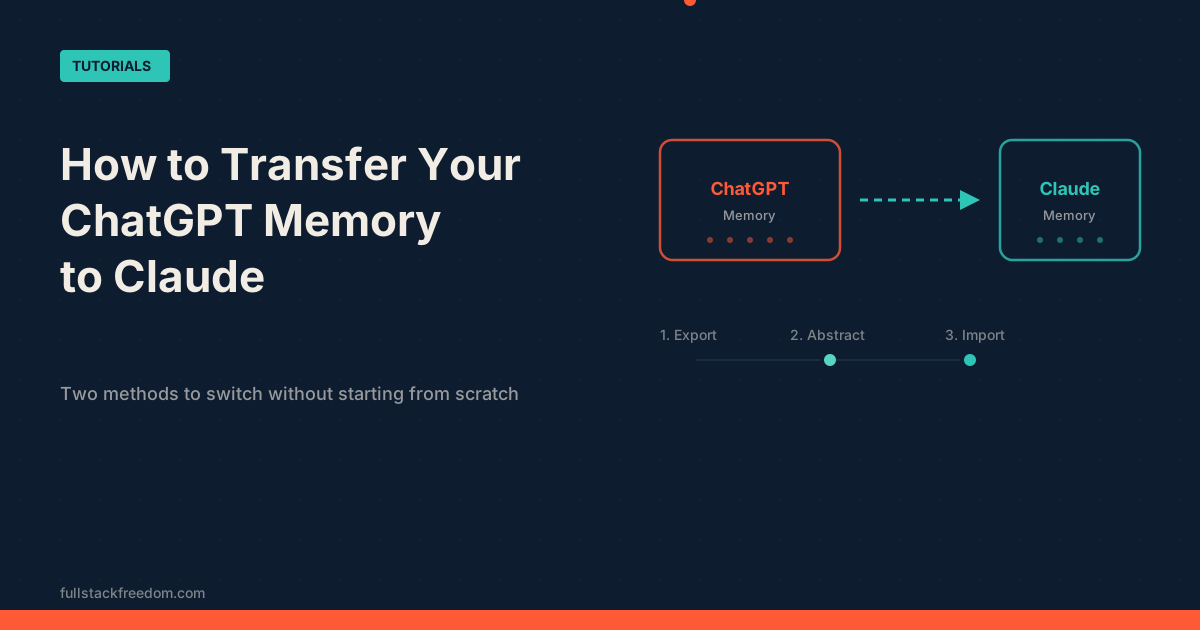
There are two paths to get this done. The original method (which gives you more control and deeper context), and a newer built-in import feature that Claude released. I’ll cover both.
How to Transfer ChatGPT Memory to Claude: The Full Export
This is the approach from my original tutorial that hit the front page of Reddit. It takes a bit more effort but gives you the richest transfer.
Step 1: Export Your ChatGPT Data
Open ChatGPT, go to Settings → Data Controls → Export Data, and click Export.
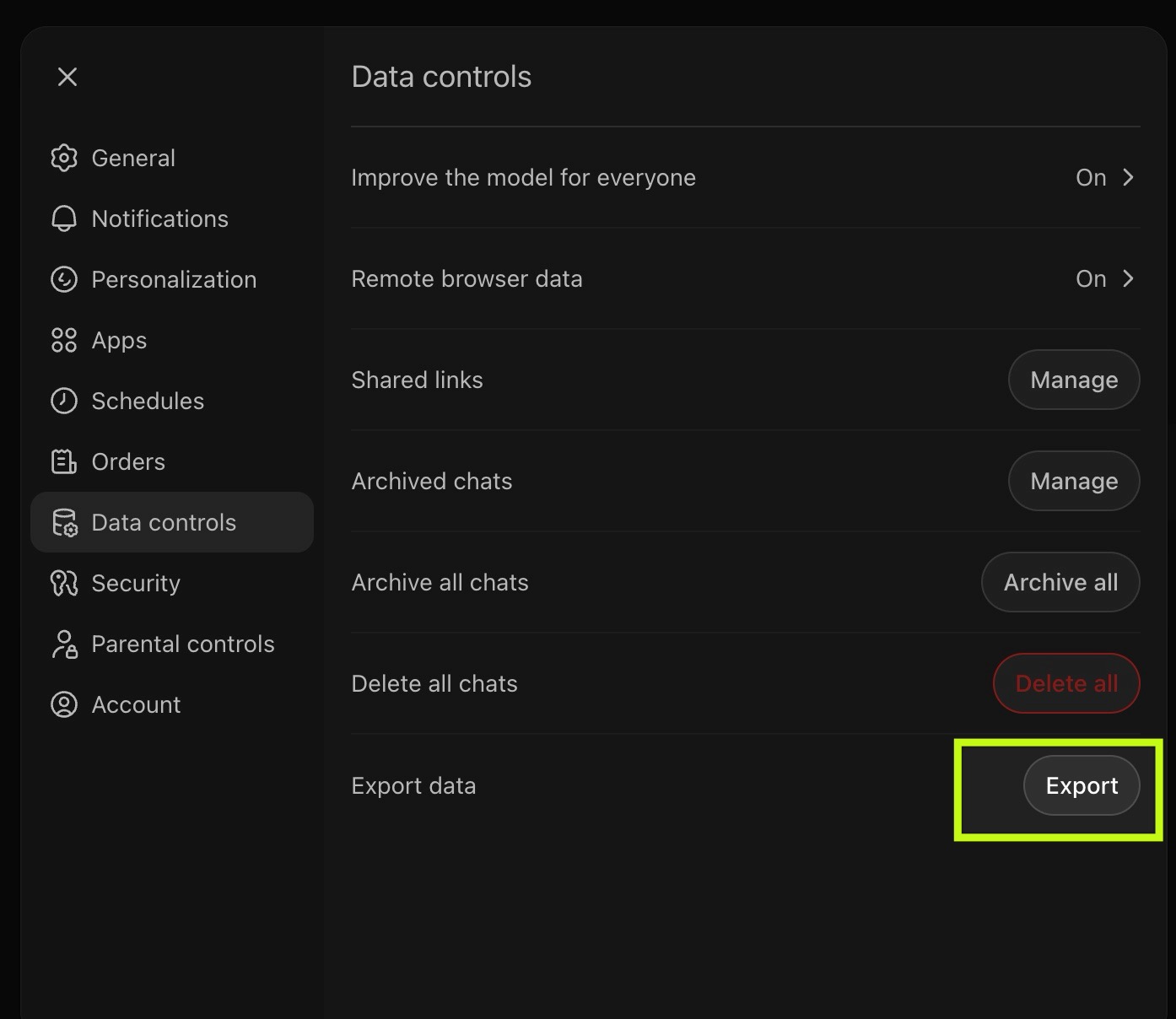
Fair warning: this takes a while. If you have a lot of history like I do, expect up to 24 hours before the download link shows up in your email. You’ll get a zip file. Mine was 1.3 GB once extracted.
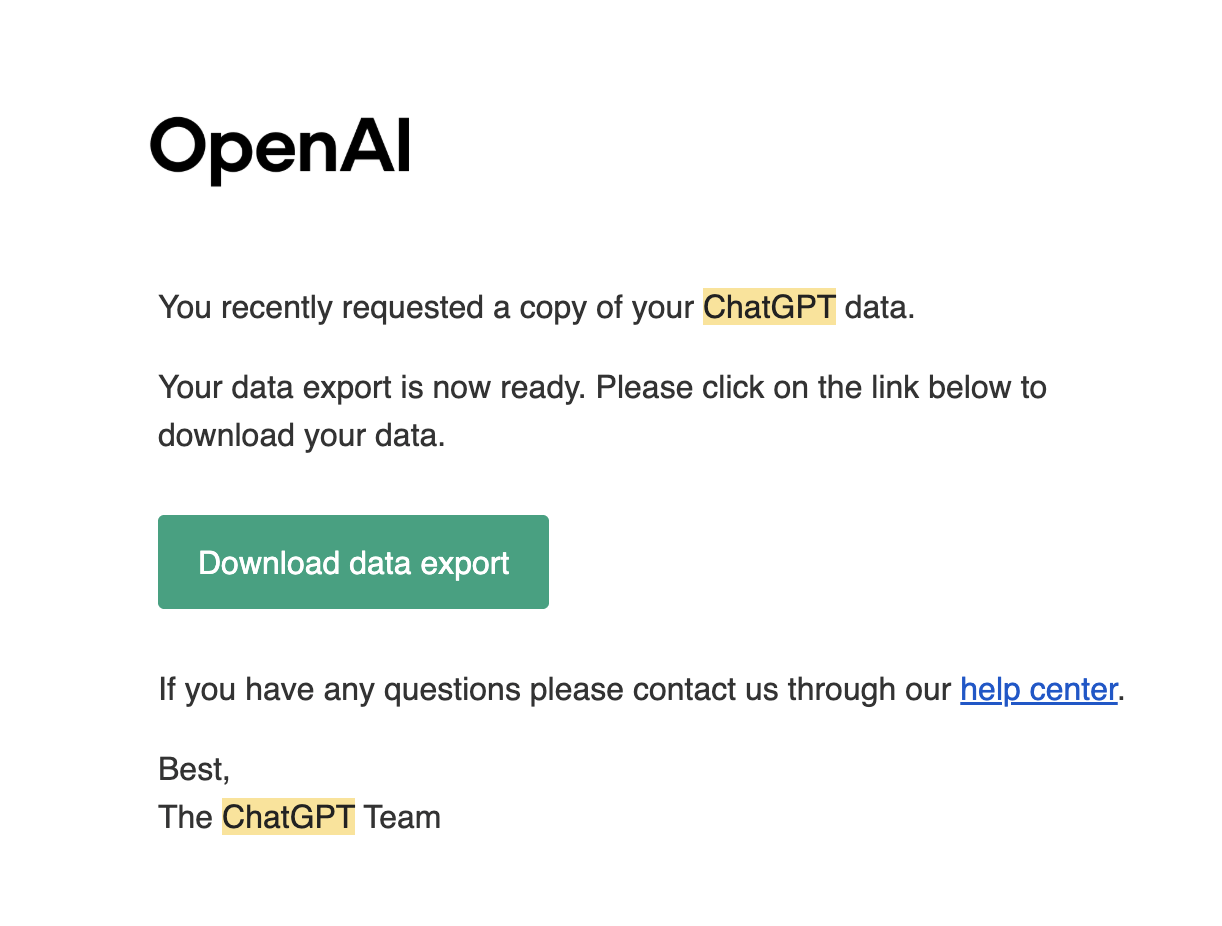
Note for Team/Enterprise users: If you’re on a ChatGPT Team or Enterprise workspace, the export option may not be available. OpenAI restricts data exports on organizational plans. Your workaround is to manually copy key conversations or ask ChatGPT directly to summarize everything it knows about you and your projects.
Step 2: Open Your Export in Claude’s Desktop App
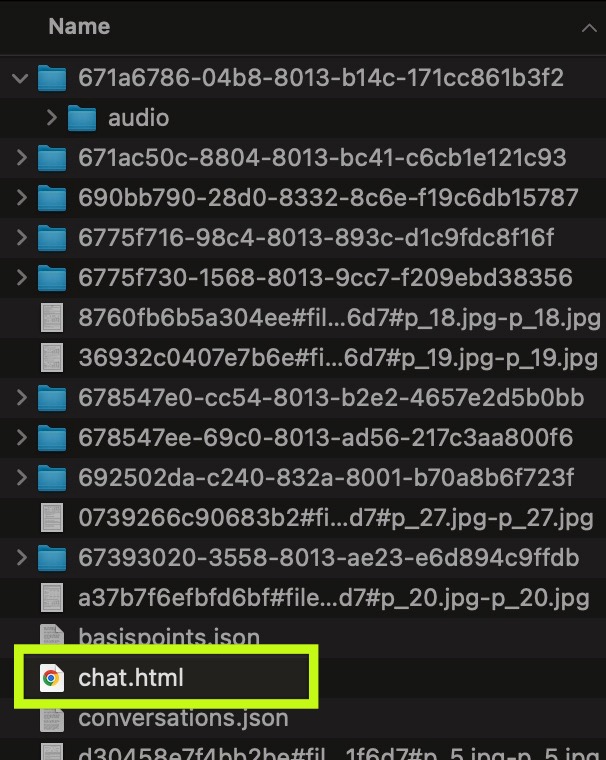
Once your file arrives, download and extract the zip. Inside you’ll find folders for each conversation, audio files, images, and one important file: chat.html.
Open the Claude desktop app and switch to Cowork mode. Point it at the entire exported folder. This lets Claude interact with all of your past conversations, images, and files right on your local machine. Nothing gets uploaded.
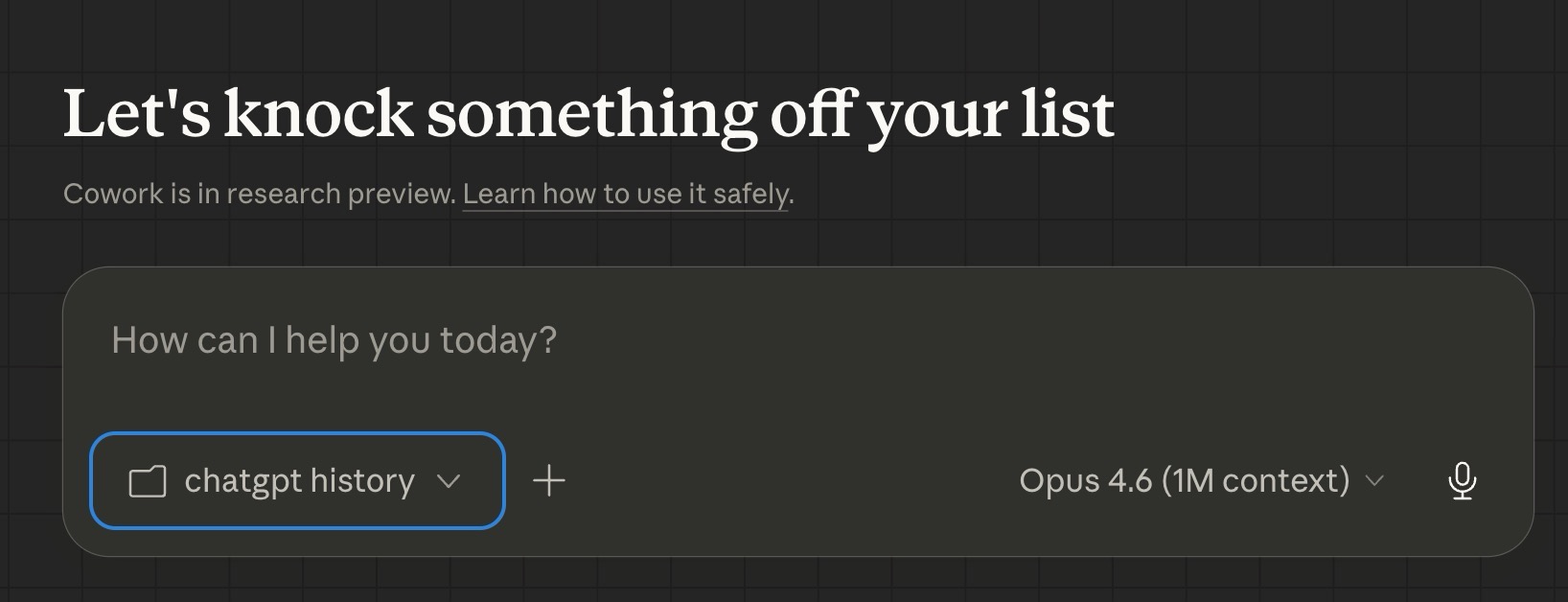
This alone is pretty powerful. You can ask Claude to search through your old conversations, find specific projects, or pull up that one thing you discussed six months ago. But for the memory transfer, we need to go one step further.
Step 3: Create the Abstraction (This Is the Key Step)
Instead of dumping raw chat logs into Claude’s memory, you want Claude to analyze your entire history and create a condensed profile. Think of it as a brief about who you are. Your personality, working style, active projects, decision-making patterns, and preferences.
Attach chat.html to a conversation in Cowork and use a prompt like this:
“You’re an expert at analyzing conversation history and extracting durable, high-signal knowledge. Review this chat history and identify my core personality traits, working style, active projects, decision-making patterns, and communication preferences. Create a structured profile I can use as context in a new AI tool.”
The full prompt I used is available in my free Skool community. It goes deeper on career background, technical skills, and how you like to collaborate with AI.
This step takes about 10 minutes to process. The output is honestly a little eerie. When you’ve used these tools as much as some of us have, they learn a lot about you. It’s also a solid gut check on how you actually work versus how you think you work.
Step 4: Paste the Abstraction into Claude’s Memory
Copy the entire abstraction output, then go to Settings → Capabilities → Memory.
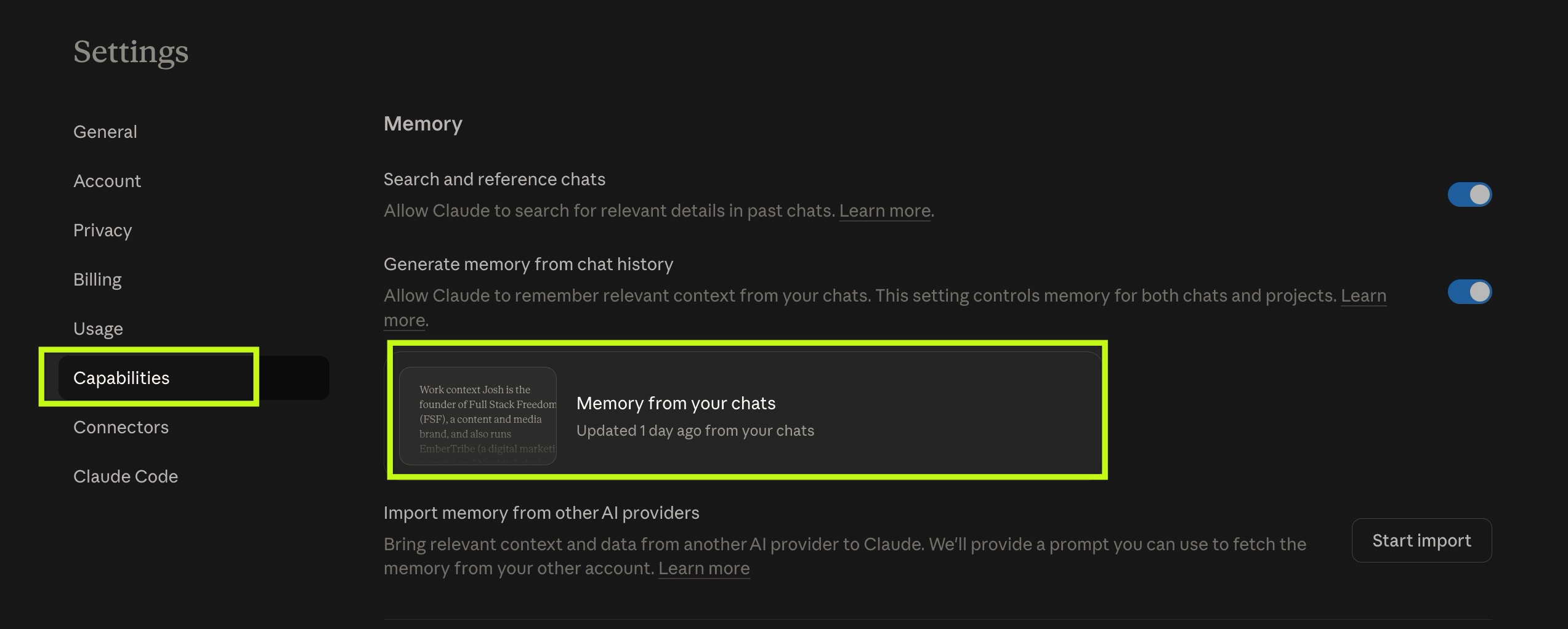
Paste the abstraction into the memory field with a note like “Cognitive profile synthesized from my ChatGPT history.” Done.
Now every new conversation and project in Claude can reference that context. It’s not a perfect 1:1 transfer, but it gets you about 80% of the way there immediately. And you can always go back to the raw export folder in Cowork if you need to dig into something specific from your old conversations.
The Faster Way: Claude’s Built-In Memory Import
After my tutorial went viral, Anthropic shipped a dedicated import path. If you want the quickest route, this is it.
How It Works
Go to Settings → Capabilities → Memory, and you’ll see a new option: “Import memory from other AI providers.”

Click Start Import. Claude gives you a ready-made prompt to paste into ChatGPT (or whatever provider you’re coming from). It covers the same ground: identity, career context, working style, project details. Paste that prompt into ChatGPT, copy whatever it gives you back, and paste it into Claude’s import window.
That’s it. Claude weaves the response into its memory.
Which Method Should You Use?
| Method 1: Full Export | Method 2: Built-In Import | |
|---|---|---|
| Depth | Analyzes your entire chat history | Only what ChatGPT’s memory recalls |
| Time | 24h for export + 10min processing | 5 minutes total |
| Bonus | Local archive of all conversations | None |
| Best for | Power users with years of history | Quick switchers |
My recommendation: Use Method 2 for the memory transfer (it’s faster and the prompt is solid), but still do the data export from Method 1 so you have a local archive of all your conversations. You can explore those files anytime using Cowork to find old audio notes, images, or specific project details that didn’t make it into the abstraction.
Common Issues and Fixes
A few things that tripped people up when this went viral:
- File too large for Claude. My
chat.htmlwas 104 MB. If yours exceeds Claude’s upload limit, use Cowork (which reads files locally) or break the HTML into smaller chunks using a script. - ChatGPT export says “Not found.” Multiple people reported getting a broken download link. Try logging out completely, clearing your cache, and requesting the export again in a different browser.
- Team/Enterprise accounts can’t export. This is an OpenAI restriction. Your best bet is asking ChatGPT to list everything it remembers about you, then pasting that into Claude’s import.
- ChatGPT gives a vague summary. Some users reported ChatGPT only returning 10-12 surface-level memories. Ask it to expand each section with more detail, or use the full export method instead.
What This Means for You
The barrier to switching AI tools just got a lot lower. You’re not locked in anymore. Your context, your preferences, your working style can travel with you.
If you’re a founder or operator who’s been putting off the switch because you didn’t want to lose years of built-up context, this solves that. And once you’re in Claude, features like Projects, Cowork, and the growing AI agent ecosystem make it worth the move.
Next Steps
The full prompt for the abstraction step is free in the Skool community along with other prompts, templates, and builds I’m working on. If you want to see how I’m wiring all of this together, that’s the place.
I also share more tutorials like this on the Full Stack Freedom YouTube channel. Subscribe if you want to see what gets built next.