
Most presentation tools still feel like they were built for a different era. You open a blank slide, stare at it, drag some boxes around, fight with alignment, and two hours later you have something that looks okay. Gamma skips all of that.
You give it a topic or paste in your notes. It builds the entire presentation for you, complete with layout, visuals, and structure. Then you edit what needs editing. The whole process takes about five minutes.
Here’s exactly how to use Gamma AI to build presentations that actually look good.
Getting Started with Gamma AI
Head to gamma.app and create a free account. The free tier gives you enough credits to build several presentations before you need to decide if it’s worth upgrading.
Once you’re in, you’ll see your dashboard with any existing presentations and the main action buttons at the top.
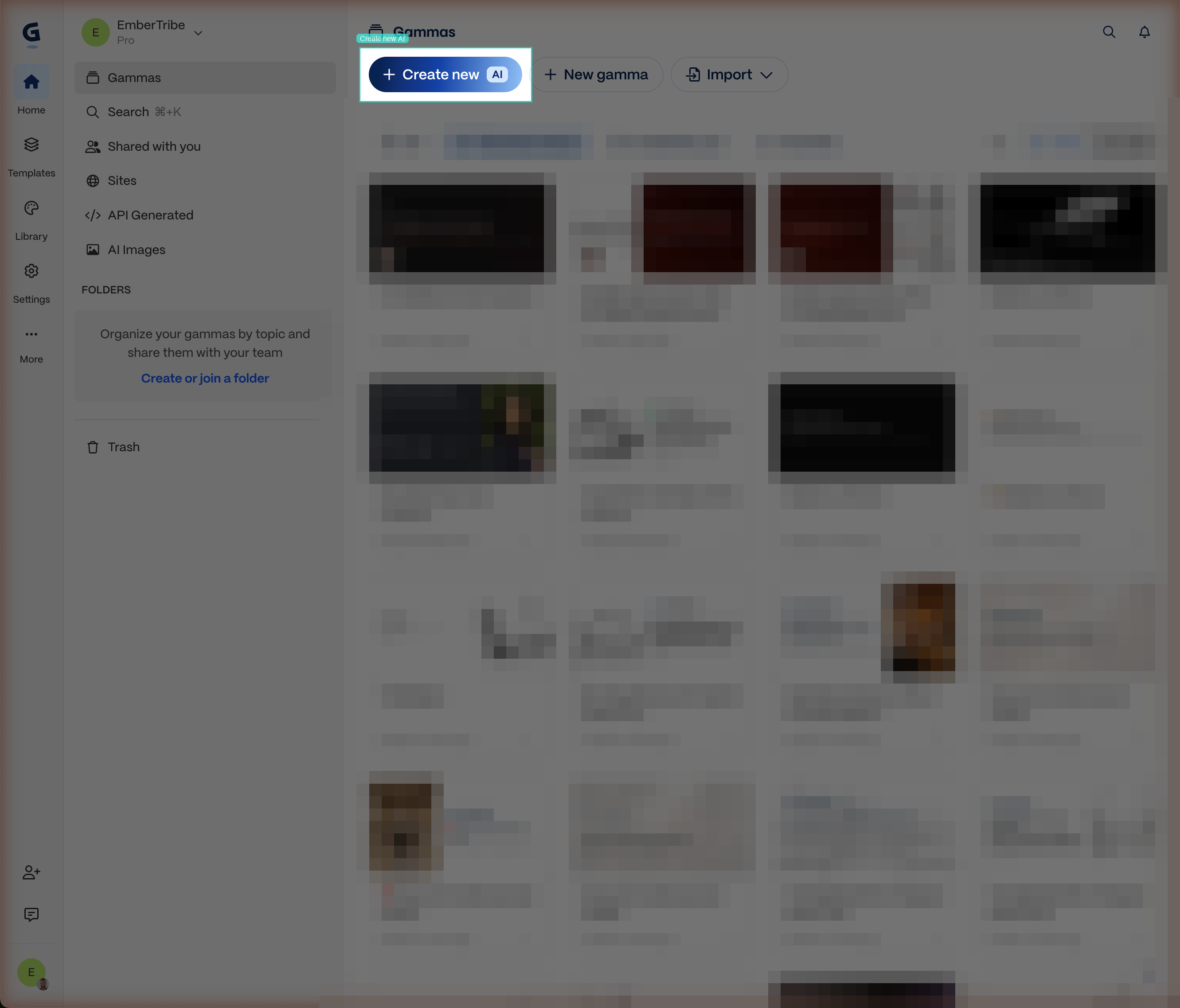
Click “Create new AI” to start building. This opens the AI creation flow where you choose what type of content to create.
How to Create an AI Presentation in Gamma
Gamma gives you three creation modes:
- Presentation for slide decks (pitch decks, team updates, client reports)
- Document for longer-form content (proposals, briefs, one-pagers)
- Webpage for shareable web pages (landing pages, portfolios)
For this walkthrough, we’ll build a presentation.
Step 1: Enter Your Topic or Paste Your Content
After selecting “Presentation,” you’ll see a prompt input. You have two options here:
- Type a topic and let Gamma generate everything from scratch
- Paste existing content (notes, an outline, a doc) and let Gamma structure it into slides
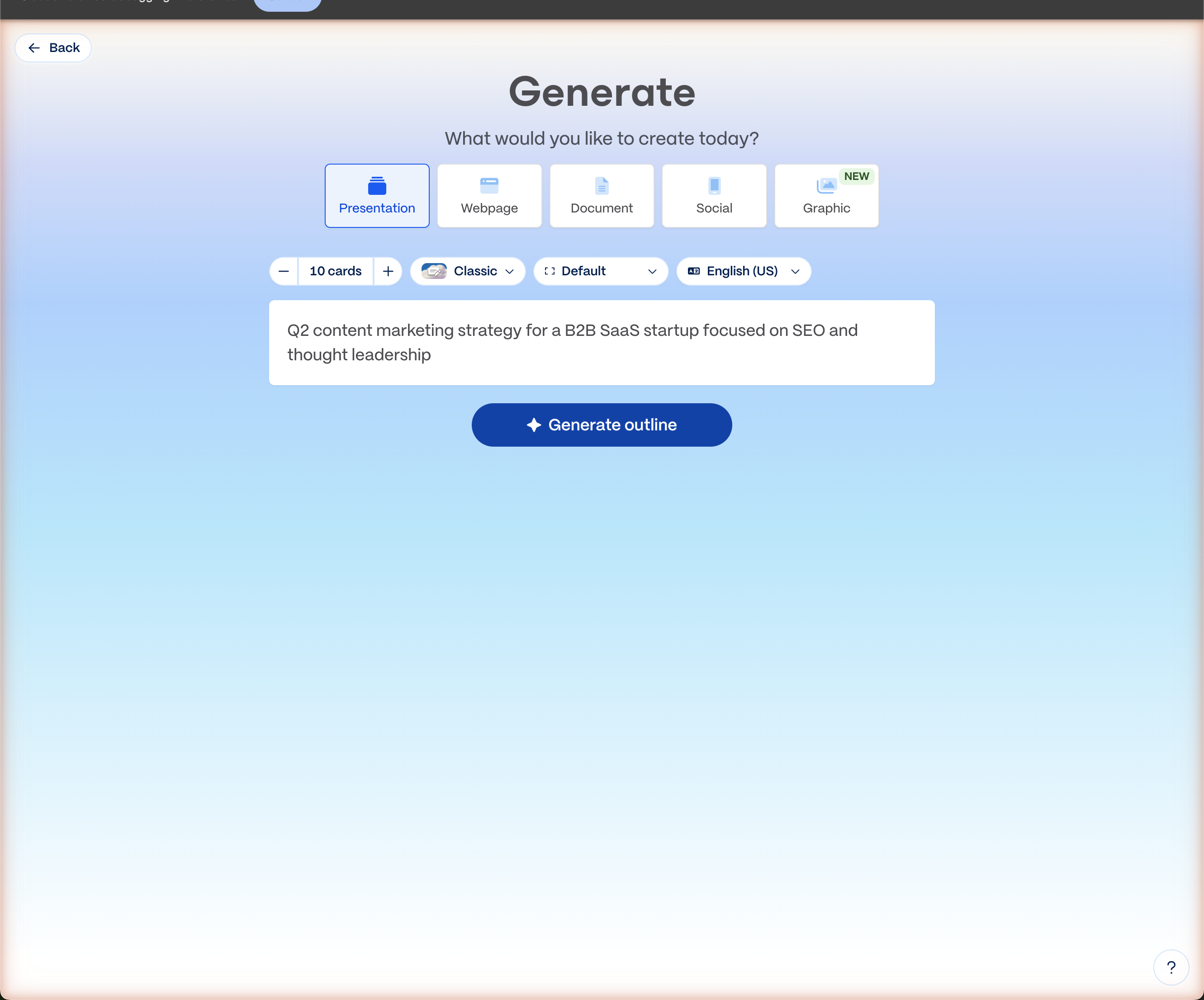
The more specific you are, the better the output. Instead of “marketing strategy,” try something like “Q2 marketing strategy for a B2B SaaS company focused on content and SEO.” Gamma uses your input to decide the number of slides, the section structure, and what content goes where.
Step 2: Pick a Theme and Let It Generate
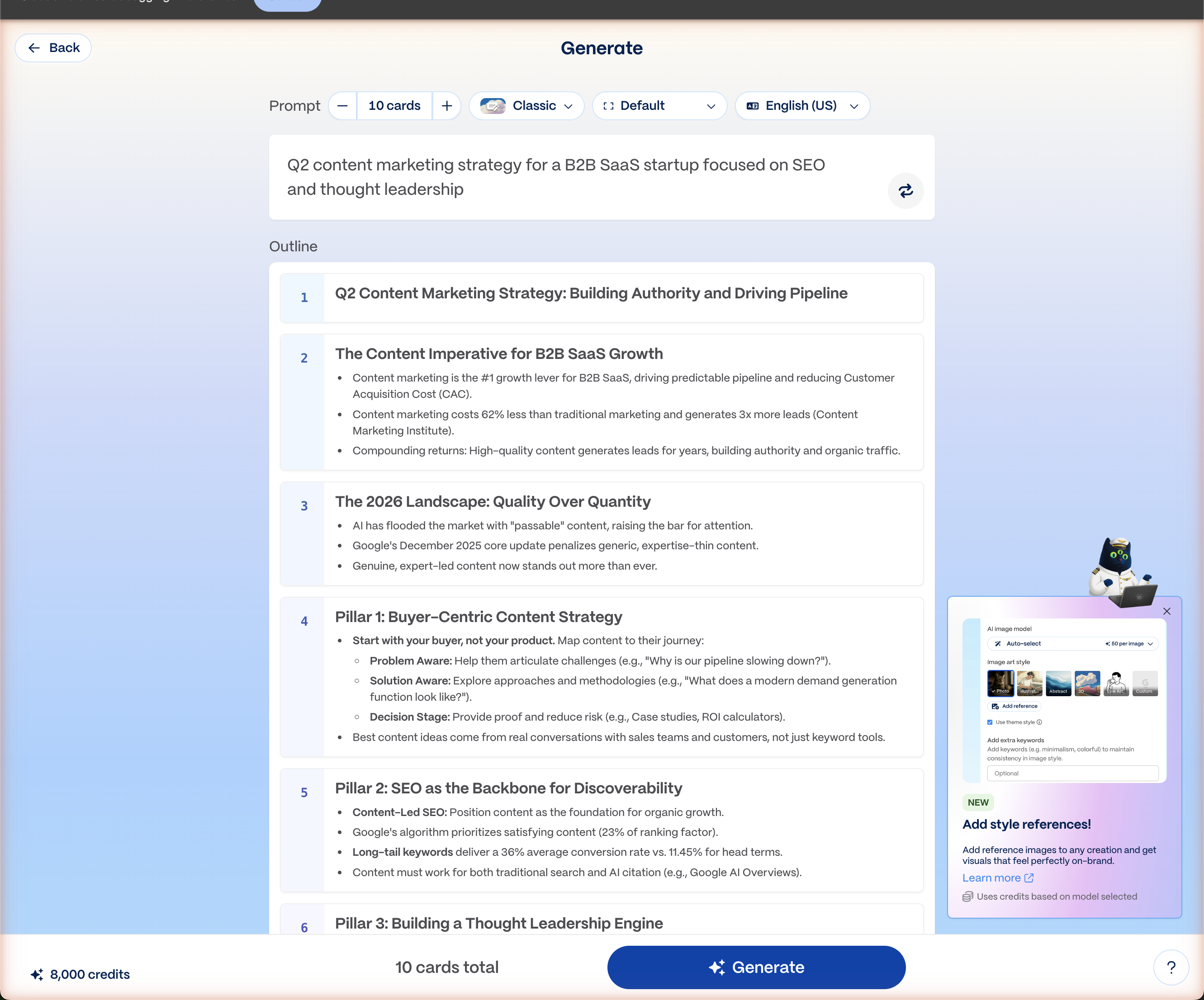
After you submit your prompt, Gamma shows you a card outline of the proposed slides. You can rearrange, add, or remove cards before generating. Once you’re happy with the structure, pick a visual theme and hit generate.
Generation takes about 30 seconds. Gamma builds each slide with relevant content, pulls in stock images or AI-generated visuals, and applies consistent styling across the deck.
Step 3: Edit and Refine
The editor works like a mix between Google Slides and Notion. Each slide is a “card” that you can edit inline. Click any text to change it. Drag elements to reposition them. Swap images by clicking on them and using Gamma’s built-in image search or AI image generation.
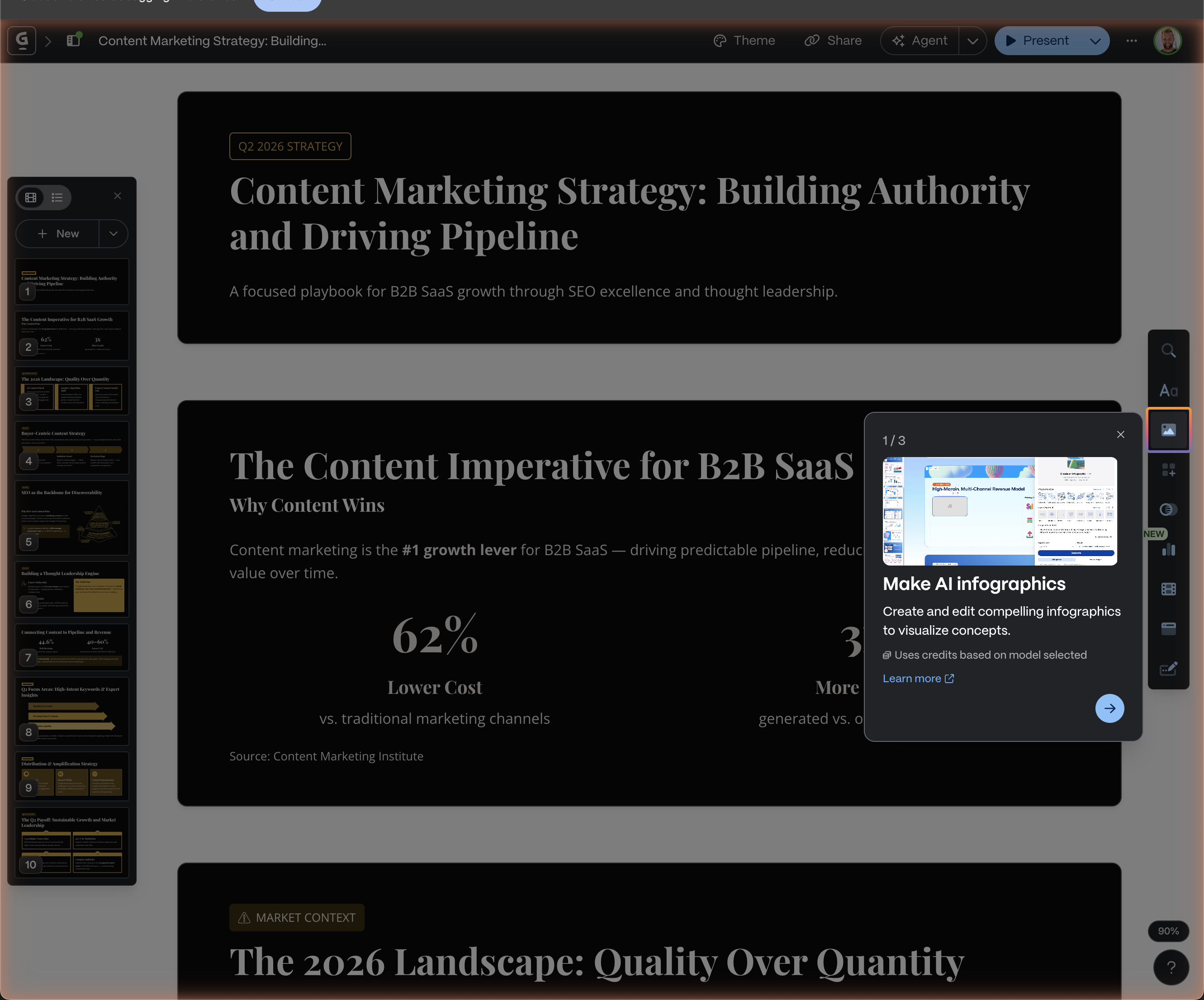
A few things that make editing fast:
- AI rewrite: Highlight any text and ask Gamma to rewrite, shorten, or expand it
- Smart layouts: Change the layout of any card with one click. Gamma reflowed the content automatically.
- Image generation: Gamma can generate custom images that match your content using built-in AI models
- Drag and drop: Reorder cards by dragging them in the sidebar
You’re not starting from scratch. You’re editing a solid first draft. That’s the difference between spending two hours on a deck and spending twenty minutes.
Sharing and Presenting
When your deck is ready, click the Share button in the top right. Gamma gives you several options:
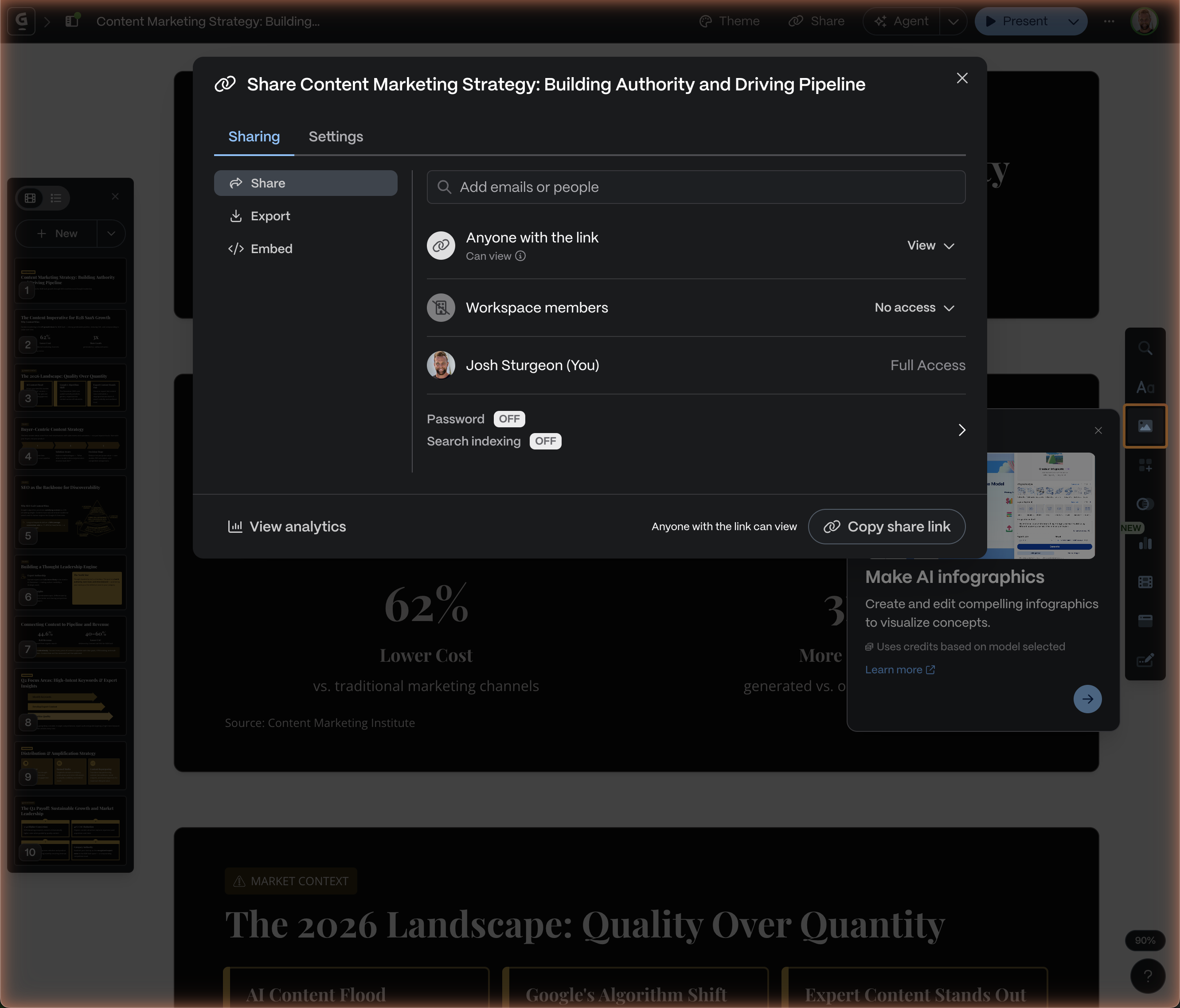
- Present: Full-screen presentation mode, works like PowerPoint/Google Slides
- Share link: Anyone with the link can view it (no login required for viewers)
- Export to PDF/PPTX: Download as a traditional file if you need to email it or present offline
- Embed: Drop it into Notion, a website, or an email
The share link is particularly useful. Your audience sees a polished, interactive presentation in their browser. No file downloads, no compatibility issues.
What Gamma Is Good At (And Where It Falls Short)
Where Gamma shines:
- Speed. A full 10-slide deck in under 5 minutes. Nothing else comes close.
- Design quality. The output genuinely looks professional without any design skill required.
- Content structure. It does a solid job of organizing ideas into logical slide sequences.
- Web-native sharing. The link-based sharing is better than emailing PowerPoint files.
Where it’s limited:
- Fine-grained control. If you need pixel-perfect layouts or custom animations, you’ll hit walls. This isn’t PowerPoint.
- Brand consistency. You can customize themes, but matching exact brand guidelines takes more work than it should.
- Data visualization. Charts and graphs are basic. For data-heavy decks, you might need to supplement with screenshots from another tool.
- Credit system. The free tier runs out. Paid plans start at $10/month, which is reasonable but worth knowing upfront.
For a deeper comparison against other AI presentation tools, check out our breakdown of the best AI presentation makers.
What This Means for You
If you’re a founder building pitch decks, an operator putting together team updates, or anyone who needs to present ideas visually, Gamma removes the biggest bottleneck: the blank slide.
The combination of AI generation with a clean editor means you spend your time on the content and story, not on layout and formatting. For most business presentations, that’s the right tradeoff.
I use Gamma regularly for client decks and internal strategy docs. It’s become part of my core AI tool stack alongside Claude for writing and Descript for video.
Next Steps
Gamma has a free tier that gives you enough credits to test it properly. Start with something you’d normally build in Google Slides or PowerPoint and see how the AI draft compares to what you’d build manually.
If you want to see more tools like this and how I wire them together, join the Skool community where I share the full stack.